
Media library
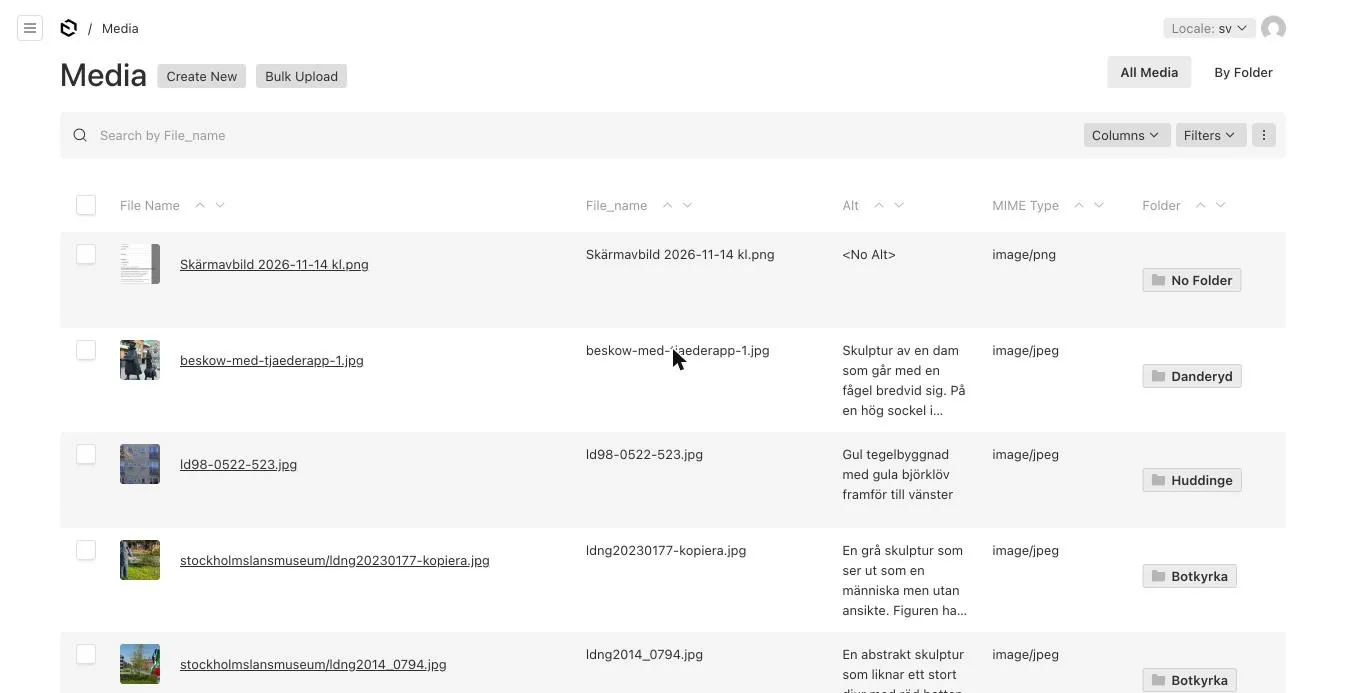
All images, audio, video and other files live in Media. The same file can be used in many places.
Upload a file
Section titled “Upload a file”- Open Media and click Create New.
- Drag in the file or click to choose it from your computer.
- Fill in Alt – a short description for screen readers (see Alt text).
- Optionally choose a Folder.
- Save.
Upload many files
Section titled “Upload many files”Click Bulk Upload and drag in several files at once. Fill in alt text for each file in the list before saving.
Upload where the file is used
Section titled “Upload where the file is used”In every image, audio and video field (e.g. an Image Block or Audio → Sources) you can:
- Choose from existing – pick a file already in Media.
- Create New – upload a new file directly. It’s added to Media and linked to the field.
Find files
Section titled “Find files”- Search by file name.
- By Folder shows files in folders. Create one folder per walk or theme.
- Filters – e.g. by file type.
Alt text per language
Section titled “Alt text per language”Alt text is language-specific. Switch Locale in the top right and fill in the alt text for each language.
Which formats?
Section titled “Which formats?”Media accepts any file type, but not everything works on a phone. In short: JPG for photos, MP3 for audio and MP4 (H.264) for video. Comparisons with pros and cons are under Images, Audio and Video.
Text in videos
Section titled “Text in videos”Separate subtitle files (VTT, SRT) aren’t supported in the new CMS. Burn the text into the video instead – see Video.
Downloaded or streamed?
Section titled “Downloaded or streamed?”- Images and videos are downloaded to the phone the first time the mobile app starts, and new or changed files when the content is updated. That’s why it’s important to keep files small.
- Audio is streamed when it plays.
- The web app loads everything when it is shown.
Delete a file
Section titled “Delete a file”Tick the file in the list → Delete, or open the file → ⋮ → Delete. First check that the file isn’t in use – a deleted image disappears from every page, walk and stop that used it.
Where are files stored?
Section titled “Where are files stored?”On OnSpotStory’s own servers in Sweden. See GDPR and data protection.
AI answers can be wrong – check the linked pages.