
Find your way around the CMS
The menu
Section titled “The menu”Click the menu icon (☰) in the top left corner to open the menu.
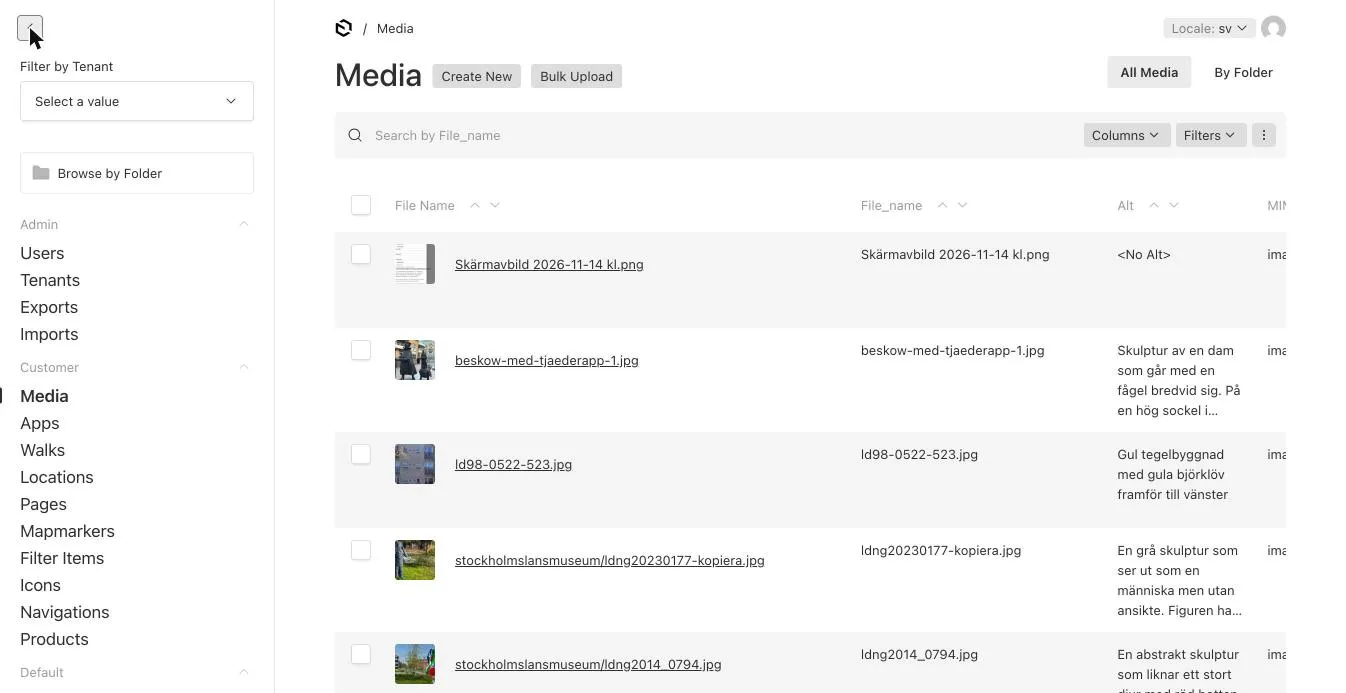
| Menu item | What you do there |
|---|---|
| Media | All images, audio, video and files. See Media library. |
| Apps | App settings: languages, design, map and which content is included. See The app. |
| Walks | Walks/tours. See Walks. |
| Locations | Stops in the walks. See Locations. |
| Pages | Stand-alone pages, e.g. home, welcome and about. See Pages. |
| Mapmarkers | Custom map markers. See Map markers and filters. |
| Filter Items | Map filters (e.g. “Toilets”, “Cafés”). |
| Icons | Custom icons. See Icons and navigation. |
| Navigations | Buttons in the app menu. |
| Products | Points on the map outside the walks (formerly InfoPins). See Places on the map. |
If you have several organisations (tenants), choose which one to work with in Filter by Tenant at the top of the menu. Browse by Folder shows content organised in folders.
The list view
Section titled “The list view”Clicking e.g. Walks shows a list of all walks.
- Create New – create a new one.
- Search – search by name.
- Columns – choose which columns to show.
- Filters – filter, e.g. drafts only.
- Click a name to open and edit it.
- Tick the boxes on the left to act on several at once (e.g. delete or publish).
The edit view
Section titled “The edit view”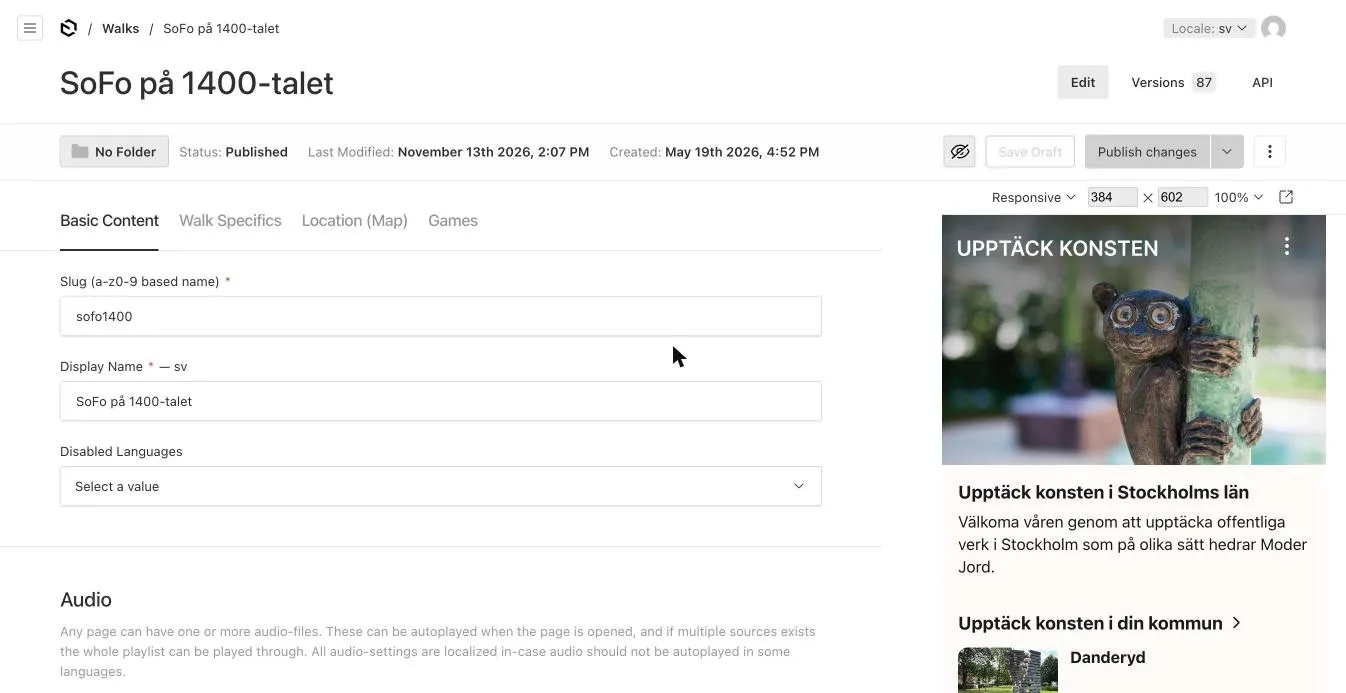
At the top:
| Element | Meaning |
|---|---|
| Title | The name of what you’re editing. |
| Edit / Versions / API | Edit is the editor. Versions shows all saved versions – see Versions. You don’t need API. |
| Folder | Which folder the document is in. Click to move it. |
| Status | Draft or Published. Changed means there are unpublished changes. |
| Save Draft | Save without publishing. |
| Publish changes | Save and publish. |
| ⋮ | More options: copy to locale, duplicate, unpublish, delete. |
| Eye icon | Show or hide the live preview on the right. |
The form is split into tabs, such as Basic Content, Walk Specifics and Location (Map). A field you can’t find may be on another tab.
Required fields
Section titled “Required fields”Fields marked with a red * are required. If something is missing you’ll see an error when saving, and the tab with the error is highlighted.
Language switcher – Locale
Section titled “Language switcher – Locale”In the top right corner is Locale: sv. Fields that can differ per language show the language code after their name, e.g. Display Name — sv.
- Fill in the text in Swedish.
- Switch to Locale: en in the top right.
- Fill in the English text in the same field.
- Save.
Fields without a language code (e.g. coordinates) are shared by all languages. See Languages.
Live Preview
Section titled “Live Preview”On the right you see a preview of the content as it appears in the app, updated as you type. Above it you can choose screen size and open the preview in its own window (↗). Toggle it with the eye icon.
Fields that link to other content
Section titled “Fields that link to other content”Many fields connect content, e.g. which stops belong to a walk. They appear as “chips” with names:
- ✎ opens the linked document in a side drawer – edit without leaving the page.
- × removes the link (the document itself stays).
- + creates a new document and links it.
- Click in the field to choose an existing one.
Blocks
Section titled “Blocks”Content in pages, walks and stops is built from blocks – text, images, banners, lists, questions and more. Click Add … to add a block and drag the ⋮⋮ handle to reorder. See Content blocks.
Folders
Section titled “Folders”Use Browse by Folder and the Folder button to organise content and media in folders, e.g. one per walk. Folders don’t affect the app – they just make things easier to find.
AI answers can be wrong – check the linked pages.